New Way to Avoid the Dreaded Mixed DMLError in Test Method

As of the Spring 16 release, there is now another way to avoid an error that would often occur when running Apex unit tests. The MIXED_DML_OPERATION error would occur because you can’t perform DML on a setup sObject (such as User, for example) and a non-setup object (such as Contact) in the same transaction.

So, if you had some code such as the following:


@isTest
public class UserAndContactTest {
    public testmethod static void testUserAndContact() {
        Profile p = [SELECT Id FROM Profile WHERE Name='Standard User'];
        UserRole r = [SELECT Id FROM UserRole WHERE Name='COO'];
        u = new User(alias = 'jsmith', email='jsmith@acme.com',
                emailencodingkey='UTF-8', lastname='Smith',
                languagelocalekey='en_US',
                localesidkey='en_US', profileid = p.Id, userroleid = r.Id,
                timezonesidkey='America/Los_Angeles',
                username='jsmith@acme.com');
            insert u;

        Contact currentContact = new Contact(
            firstName = String.valueOf(System.currentTimeMillis()),
            lastName = 'Contact');
        insert(currentContact);
    }
}

The unit test code above would fail with the MIXED_DML_OPERATION error.

Previously, the only way to get around it was to enclose all the operations within a System.runAs block, but now you have another alternative in which you can use @future to bypass the error. For example, the following class could contain the code used to insert the user:


public class InsertFutureUser {
    @future
    public static void insertUser() {
        Profile p = [SELECT Id FROM Profile WHERE Name='Standard User'];
        UserRole r = [SELECT Id FROM UserRole WHERE Name='COO'];
        User futureUser = new User(firstname = 'Future', lastname = 'User',
            alias = 'future', defaultgroupnotificationfrequency = 'N',
            digestfrequency = 'N', email = 'test@test.org',
            emailencodingkey = 'UTF-8', languagelocalekey='en_US', 
            localesidkey='en_US', profileid = p.Id, 
            timezonesidkey = 'America/Los_Angeles',
            username = 'futureuser@test.org',
            userpermissionsmarketinguser = false,
            userpermissionsofflineuser = false, userroleid = r.Id);
        insert(futureUser);
    }
}

And then, you could just change the original code to be the following:


@isTest
public class UserAndContactTest {
    public testmethod static void testUserAndContact() {
        InsertFutureUser.insertUser();

        Contact currentContact = new Contact(
            firstName = String.valueOf(System.currentTimeMillis()),
            lastName = 'Contact');
        insert(currentContact);
    }
}


And then there will be no more error. I think it is a better way of handling the issue than using runAs and should be considered when there is a need to run DML operations for setup and non-setup objects in the same unit test transaction.

What Ever Happened to Enhanced Computing?

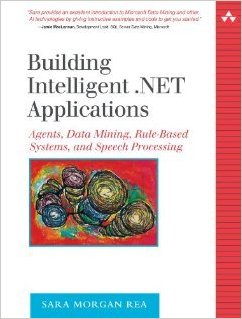
FirstBookIt is hard to believe, but it has been 11 years since my first book,Building Intelligent .NET Applications: Agents, Data Mining, Rule-Based Systems, and Speech Processing was released.

In that book I introduced the term “Enhanced Computing”, to identify software programs that utilize AI-based technologies to improve and extend traditional line of business applications. This was actually the whole premise of my book. Unfortunately, the term Enhanced Computing never really caught on, but a lot of the technologies I wrote about in that book have continued to advance and show great potential to dominate the technological landscape of tomorrow.

One thing I found interesting is that in my book I also wrote about something called the “AI Effect“, in which people observed that once a technology becomes widely accepted it is no longer associated with AI. Most recently there has been an explosion in the media concerning IOT (Internet of Things) and machine learning. Both of these concepts are firmly grounded in AI, yet you rarely see AI mentioned when referencing them. AI Effect? Must be, I think.

I was very excited to see this article about What’s Next in Computing?, in which the author goes into great detail about how we are poised for another technological revolution in which he predicts that we may have finally entered the golden age of AI.At the forefront of that is machine learning (or Data Mining as I refered to it 11 years ago).

Machine Learning and the use of Neural Networks has long been of great interest to me so I was particularly pleased to see this recent article, The cloud is finally making machine learning practical. Even though the article focused on machine learning using Amazon Web Services algorithm’s and Microsoft’s Azure machine-learning service, I see no reason why the same things could not happen on the Salesforce platform.

After all, with the recent release from Yahoo of their News Feed dataset, which is a sample of anonymized user interactions in the news feeds and is over 1.5 TB (that’s right, Terabytes) in size, all sorts of things may be possible for researchers independently exploring deep learning techniques. Especially those fueled by the cloud (hint, hint, wink, wink).

There have also been many advances in image recognition, due to other advances in deep learning, which have suddenly thrust AI more into the mainstream. In this recent article on Why 2015 was a Breakthrough Year in Artificial Intelligence, a Google researcher states, “Computers used to not be able to see very well, and now they’re starting to open their eyes.”

In fact, just this week Mastercard announced it is offering a new security app that allows people to take a selfie in order to confirm their identity. It is called, “Selfie Pay”. Way Cool!!! I am pretty sure that one is going to take off soon.

EDIT on 2/29/16: And then, there was this announcement several days after I wrote this post that Salesforce acquires Machine-learning Startup PredictionIO. I am sure they just read my post and the hint, hint, wink, wink part and that is why they purchased them (LOL) Just Kidding, but talk about timing, eh?

So, here’s to the future of <whatever it might be called next>!!!


Gotchas with using SLDSX Components

sflabs The new Salesforce Lightning collection includes a set of open-source user interface design components that were developed by Salesforce Labs. And why would you want to use these? (you might be thinking).

Well, they are built to use the SLDS (Salesforce Design System) which I blogged about in the last post. It is like Bootstrap for Salesforce. Except, that it just provides the CSS and in order to implement the components you also need JavaScript. Well, this is where the SLDSX comes in. With SLDSX you get the following beautifully styled and responsive components installed directly into your org:

  • Breadcrumbs
  • Button Groups
  • Buttons
  • Grid System
  • Images
  • Badges
  • Lists
  • Media Objects
  • Pills
  • Tabs

You can check it out at the GitHub repo here. They have a great tutorial that walks you through how to use the components.

If you are designing Lightning applications, you definitely want to be using these. But a big gotcha with trying to use them is that if you have an older Dev org in which you have already setup a namespace (like I had), then they will not work and you will get errors trying to install them.

So, in order to use them, you will have to spin up a new Dev org and make sure you enable My Domain AND that you go back to Domains in Setup and click the Deploy to Users button before you will be able to access them.

And here is one more gotcha: If you spin up a new org, you will get a copy of the SLDS as a static resource in your new org, but it is an older version. You really need to work with the latest version of the SLDS, which you can download here. You will need to first delete the current SLDS static resource and replace it with the latest version, which as of this post is 0.12.1.

Once you have them installed, just checkout the tutorial and if you have used Bootstrap you should find them pretty straightforward.

Let me know what you think.


SLDS is Bootstrap for Salesforce

I have been immersing myself in the new world of Lightning and one (note the word “one”, because there is more than one) of the most impressive parts about it is the new SLDS or Salesforce Lightning Design System.

You can just think of it as Bootstrap for Salesforce since it works very much the same as Bootstrap does for regular HTML-based apps. It just incorporates all the best Salesforce specific design options you can use into one very easy to use package.

Adding it to your Lightning app is a breeze and requires only that you use the <ltng:require> tag such as this:

<ltng:require styles="/resource/slds090/assets/styles/salesforce-lightning-design-system-ltng.css"/>

Once you have included this, then you just reference the library in your HTML code like this:

<button class="slds-button">New Button </button>

Notice the class tag? That is how you reference it. And that is how you get a nice stylized button that has the latest style that will always be updateable and current

One big gotcha to be aware of thought is that you must wrap all your HTML that uses SLDS in one div tag that uses the the class name of “slds”. For example, the button component I had listed above would not work until I added the surrounding div (NOTE: I cannot include this as formatted code because some weird WordPress issue keeps deleting the code):

That’s it. Easy peasy!

If you have not already checked it out, I strongly encourage you to do so. Every Lightning application should be using it!

Enjoy!

Updates to the Force.com Toolkit for .NET

Almost two years ago, DeveloperForce released a REST-based toolkit that offered an easy way for .NET developers to connect with the Force.com & Chatter REST API’s.

Since then, the toolkits creator has unfortunately left Salesforce, but lucky for us all, that has not stopped development. Thankfully, the newly formed alliance between Salesforce and Microsoft (along with some great pull requests made by the open source community) has allowed the update of this fantastic toolkit to continue.

There have been several big changes made to the toolkit in the past few months.

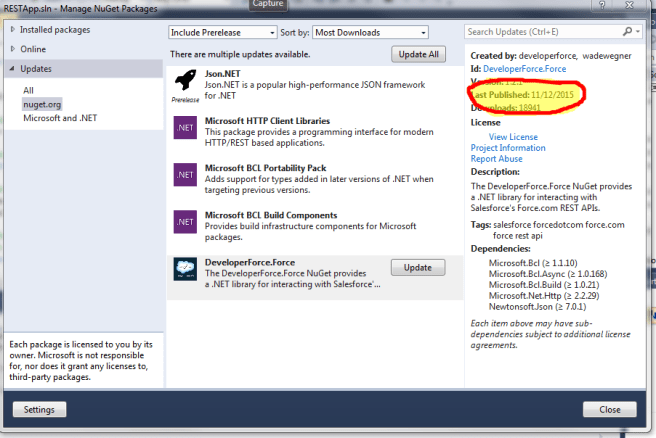
You should know that all these changes are part of the latest NuGet package, which you can update by going into Package Manager and clicking the Update button for the DeveloperForce.Force package. As you can see from the image below, the last publish was on 11/12/2015.

UpdateToolkit

One of my favorite new features is:

  • Ability to execute SOSL queries – This capability was provided by a pull request from Jerad Clingerman in August, in which he added the SearchAsync method. So now, you can do a search using code such as this:
var test = await client.SearchAsync<Contact>("FIND {617*} in Phone FIELDS RETURNING Contact(Id, FirstName, Lastname, Email, Phone, MobilePhone)");

Unfortunately, there is still no substantial documentation for how to use the toolkit. If you have a question about usage then your best resource is to look at the functional tests which are available here:

You can also check out a series of articles I wrote for DeveloperForce that was called Nothin but.NET. In this 6 part series, I go as deep as I could into how to use the Toolkit. It should be enough to get you started.

Enjoy!

What’s hot in tech? Reviewing the latest ThoughtWorks Radar

Great reference to a website that helps you stay current in this crazy moving fast industry.

Richard Seroter's avatarRichard Seroter's Architecture Musings

I don’t know how you all keep up with technology nowadays. Has there ever been such a rapid rate of change in fundamental areas? To stay current, one can attend the occasional conference, stay glued to Twitter, or voraciously follow tech sites like The New Stack, InfoQ, and ReadWrite. If you’re overwhelmed with all that’s happening and don’t know what to do, you should check out the twice-yearly ThoughtWorks RadarIn this post, I’ll take a quick walk through some of the highlights.

2015.11.22radar01

The Radar looks at trends in Technologies, Platforms, Tools, and Languages/Frameworks. For each focus area, they categorize things as “adopt”  (use it now), “trial” (try it and make sure it’s a fit for your org), “assess” (explore to understand the impact), and “hold” (don’t touch with a ten foot pole – just kidding).

ThoughtWorks has a pretty good track record of trend spotting…

View original post 710 more words

Step Four: Create External Data Source and Define Relationships in Salesforce (4 of 4)

This post will be the last of a 4 part series in which I will step you through what is necessary to expose and access a multi-table SQL Server Azure database with built-in relationships. These steps were covered at a high-level in my talk , but in this series, I will go through each step in greater detail. The steps will consist of the following:

1.) Create a SQL Server Azure Database

2.) Create ASP.NET application to expose data as OData

3.) Publish Web Application to Windows Azure

4.) Create External Data Source and Define Relationships in Salesforce (covered in this final post – see links above for other posts in the series)

TIP: Click here to access the code for this post, along with the Powerpoint slides from my talk at Dreamforce 2015 (which is what this post series is based on). But, if you follow along with tutorial in this post, you will not need it since you will be generating the code for yourself.

Step 4: Create External Data Source and Define Relationships in Salesforce

In the last step, I walked you through how to publish your ASP.NET application to Windows Azure, which would expose the SQL Server Azure data as read-only OData. Now it is time to setup Salesforce to consume that data.

To begin you will need to login to Salesforce and create a new external data source by going to Setup and typing data source in the Quick Find box. Select External Data Sources and then click New External Data Source. Keep in mind that if you are using a Development org, you will be limited to creating only one external data source at a time.

Enter a label and name for your external data source and select Lightning Connect OData 2.0 as the type. The URL should be the one you created when you published your web application in step 3.

As of Winter 16, the parameters for creating new data sources has increased (see image below). You now have some additional checkboxes and one that specifically allows you to let users create, edit and delete data on the external data source. Prior to Winter 16, you could only access data one way. For the purposes of this walk through, we will be dealing with read-only data, so there is no need to check the Allow Create, Edit and Delete checkbox. I will be covering the topic of write access in an upcoming post.

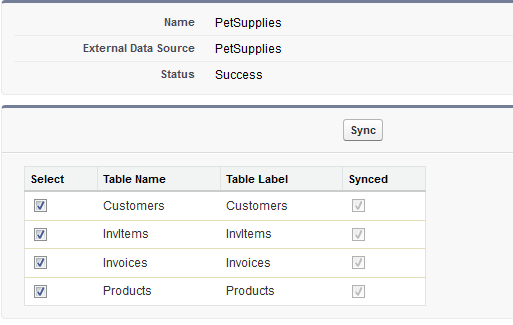
CreateDataSourceOnce the data source has been saved, you will need to click Validate and Sync on the page that follows. You should also see a list of tables with checkboxes next to then. Select them all and click Sync. Depending on the size of your database, this may take a while to complete. When it is done, you should see a status of success.

SyncDatabaseThe database I am using for this tutorial only has 4 tables, so when the sync is done, I will see 4 new external objects – one that corresponds to each table. I can click any of the links and be brought straight the object definition page (see image below).

CustomersTableDefinitionYour external object definition will look very similar to the definition for any custom or standard sObject. Notice that in the image above, the API Name for this object is sarahasnolimits_Customers__x. The sarahasnolimits part is just a namespace prefix that my development org uses. If you are following along with your own org, you may have a different prefix or none at all.

You should also take note of the __x portion of the name. You will see this for all external objects and it is the main way of distinguishing an external object from a regular sObject.

Even though the metadata for our web service lists the relationships associated with our SQL Azure tables, these relationships are not automatically setup in Salesforce. You will have to define them yourselves by editing the definition for one of the fields in your external object.

But which field do you use?

If you are unsure which fields should be used to define these relationships, you can always look at the metadata for your service by using a browser, entering the url for your publicly exposed web service and adding $metadata to the end of the URL. Such as in the image below, you should see which field names are used to define the relationships between your tables.

MetadataRelationshipIn the example above, I can see that the field used to link Customers to Invoices in CustId. Therefore, I can return to the object definition in Salesforce and edit the field definition for the field that has an external alias named CustID. When I do, I should then click Change Field Type and select External Lookup Relationship as the new type (see image below).

ExternalLookupRelationshipExternal Lookup Relationships are used to link external objects together and in this case, the CustId field will be related to the Invoices object. I know this because that was the same relationship it had in the metadata for my web service. Note that you will need to specify a length for your relationship field. I am just going to select a length of 18 and click Save to complete adding the relationship.

I will have to add relationships for all of the relationships specified in my metadata (which in my case is 3): One for the FK_Invoice_ToCustomer association, one for the FK_InvItem_ToInvoice association, and one for the FK_InvItem_ToProduct association.

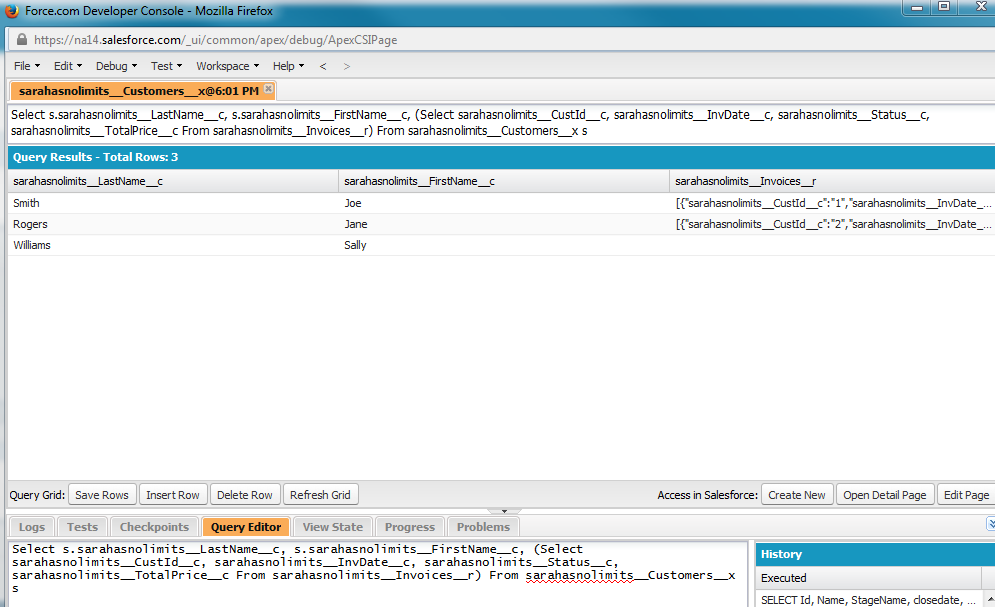
When I am all done creating the relationships, I will be able to query these objects just like I would any other standard or custom sObject. For example, the following query could be executed in the Query Editor of Developer Console:

Select s.sarahasnolimits__LastName__c, s.sarahasnolimits__FirstName__c, (Select sarahasnolimits__CustId__c, sarahasnolimits__InvDate__c, sarahasnolimits__Status__c, sarahasnolimits__TotalPrice__c From sarahasnolimits__Invoices__r) From sarahasnolimits__Customers__x s

The results from the query should look similar to what you see in the image below:

QueryResults

WARNING: If you go back to your External Data Source and re-sync the external objects for which you have defined relationships, they will be removed and restored to their original data types.

External objects work very much like custom objects and so you can create tabs, list views, and even complex Visualforce pages with them. What makes them so special is that unlike standard or custom objects, the data does not reside on Salesforce servers. It just looks like it does.

Who-hoo – The new Apex Interactive Debugger is finally here!!!

UPDATE on 3/1/2017: If you are interested in learning more about the Debugger, check out this Developers Relations Post. I would also suggest you check out this very interesting StackExchange Post, in which someone who has actually used the Debugger chimed in. FYI: It costs about $18,000/year.

Any Salesforce developer that has migrated from another language (especially .NET) knows that the debugging capabilities in Force.com are…ummm, how shall I put it?

They suck! Yeah, that’s it.

Well, guess what? As of Winter 16, Salesforce is offering a new Apex Interactive Debugger that will finally make developers of other platforms feel right at home.

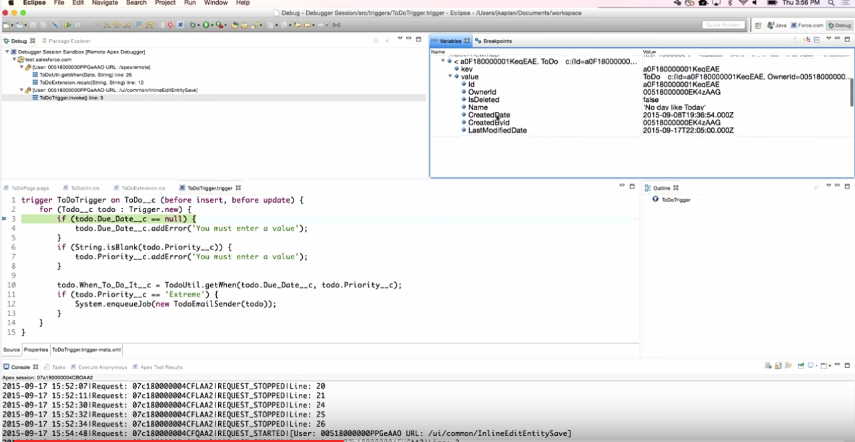
I am talking about an interactive debugger that allows you to set, remove and suspend breakpoints. It also allows you to step in, step out, step over and through your code, as well as view variables at any point in the stack and also output System.debug statements to the console window.

This new interactive debugger is being offered as an eclipse plug-in (see image below).

ApexDebugger

Now, I must offer full disclosure right up front and tell you that there is one really big gotcha with this announcement and that is this:

It’s going to cost you. As in money. I would imagine a good amount of it too (although you will have to contact your Account Executive to find out exactly how much). Supposedly you can purchase debugger sessions that can be shared by your whole development team.

But why? Salesforce has always offered development tools for free.

The big reason for this cost is not because Salesforce is trying to make a lot of money off customers. It is to effectively limit the use of the tool. Because Salesforce is a multi-tenanted environment and resources are shared, if every customer all of a sudden was granted access to the new Apex Interactive Debugger, guess what would happen?

Crash!!!! as in all the servers lock up and no one is happy.

The Interactive debugger uses a debugger session manager and every debugging session is a transaction that can last up to 30 minutes. Each transaction needs a thread and a database connection. These are very expensive resources and in a shared environment, if every customer was able to do this, performance problems would quickly result.

Another thing to note is that the debugger uses the debugging API and at this time, that API is not publically available. This means that you will not find this kind of functionality offered in any third-party tools, such as MavensMate. Once Salesforce works out the kinks, they will likely release it publically, but in the meantime, the eclipse plug-in is the only way to go.

Also, for obvious reasons, this will only work on Sandbox orgs.

If you are a partner or a big development shop (now I am starting to wish I was one of those), then these limitations and the cost will likely not offset the benefit to having this super new tool. If you are interested in learning more, check out this Dreamforce video in which Josh Kaplan walks you through using the new debugger.

Happy debugging!!!!

UPDATE on 3/1/2017: If you are interested in learning more about the Debugger, check out this Developers Relations Post. I would also suggest you check out this very interesting StackExchange Post, in which someone who has actually used the Debugger chimed in. FYI: It costs about $18,000/year.

Step Three: Publish Web Application to Windows Azure (3 of 4)

This post will be part 3 of a 4 part series in which I will step you through what is necessary to expose and access a multi-table SQL Server Azure database with built-in relationships. These steps were covered at a high-level in my talk , but in this series, I will go through each step in greater detail. The steps will consist of the following:

1.) Create a SQL Server Azure Database

2.) Create ASP.NET application to expose data as OData

3.) Publish Web Application to Windows Azure (covered in this post)

4.) Create External Data Source and Define Relationships in Salesforce

TIP: Click here to access the code for this post, along with the Powerpoint slides from my talk at Dreamforce 2015 (which is what this post series is based on). But, if you follow along with tutorial in this post, you will not need it since you will be generating the code for yourself.

Step 3: Publish Web Application to Windows Azure

In Step 2, I walked you through creating an ASP.NET web application that exposed SQL Server Azure data as OData through a web service. As it is now, that web service will run only on your local machine. In order for Salesforce to be able to access the data exposed by the web service, it must be published to an external website.

Create Web App in Windows Azure

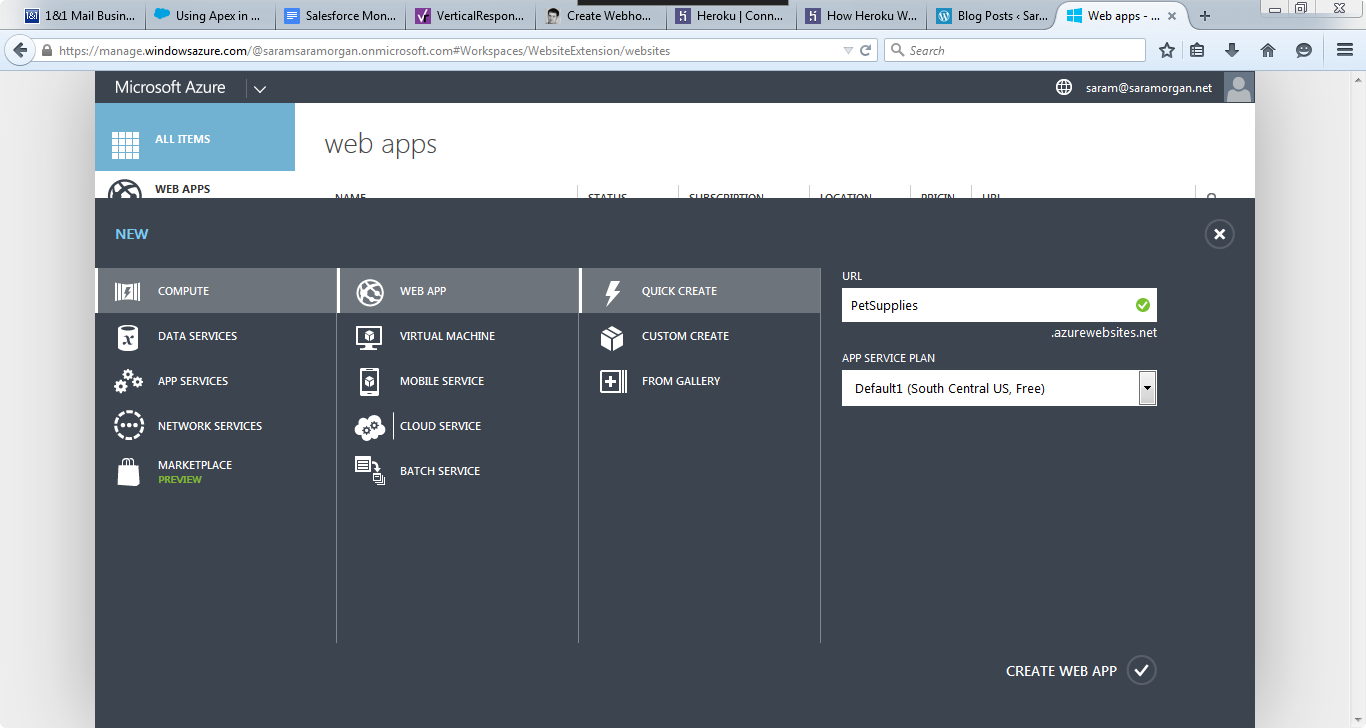
You can publish the web application easily to Windows Azure, but you will first need to create a website/ web app in the Windows Azure Management Portal. To do so, log in to Windows Azure and click on the Web Apps icon in the left menu bar. Click New (next to a big plus sign) in the bottom right corner of the web apps page. From the new menu, click Quick Create and enter a unique name that will be used in the URL for this website (see below) and click Create Web App.

AzureWebAppsIt should take a few minutes for the web app to be created. When it is done, it should show a status as Running. Click on the web app to go to the quick start page and from there, select the Download the publish profile link under Publish your app. Save the file it generates to you local machine.

Use the Publish Web Wizard

Visual Studio has a nice wizard that you can use for publishing applications to external sites. You can access it by right-clicking the project in Solution Explorer and selecting Publish. On the first page of the wizard, click Import and the browse to the location on your machine where you saved the publish profile.

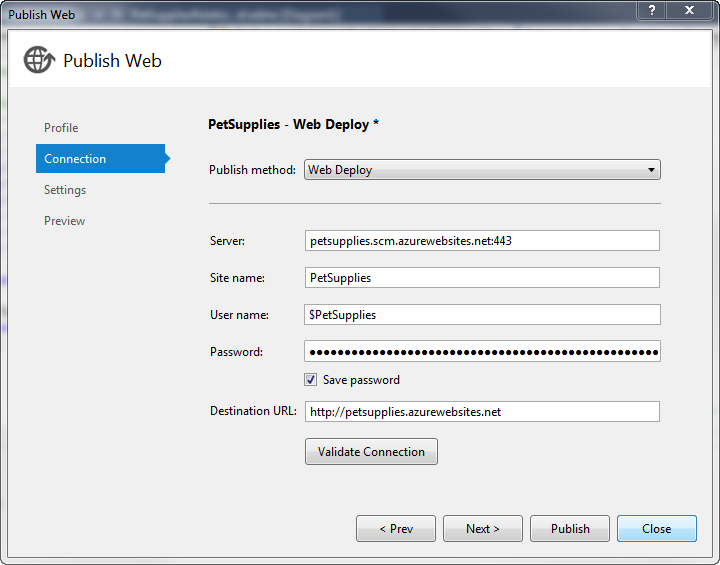
The next page of the wizard should have all the settings entered for you as it got this information from the publish profile. Make sure you click the Validate Connection button (see image below) to verify that your connection is good.

PublishWizardOnce validated, click Publish and wait for the publish to complete. When it is done, you will see a message in the status bar of Visual Studio indicating it is finished.

TIP: Be prepared for the initial publish to take several minutes to complete. If you try to access the web app before it has finished, you will get errors telling you that the resource cannot be found.

You can then access the web service using a web browser. The URL should be something like the following:

http://<your website name>.azurewebsites.net/<your service name>

If successful, you should see the same XML results that were displayed when you browsed to the service on your local machine.

Query your OData in the Web Browser

Because your data has been published to the web as OData, you, or anyone else can access the data directly using any web browser. For example, if you wanted to see all the data in the customers table, you could add the entity name Customers (note that it is case sensitive) to the end of the URL and hit enter. If you are using a browser such as Google Chrome, this will display for you ALL the customer data in XML format.

Great, but what if you just wanted to see data for a certain customer?

To accomplish this, you can add query string parameters to the end of the URL, such as the following:

Customers?$filter=Addr1 eq ‘123 Main St’

The query string above can be used to return all data from the Customers entity where the Addr1 field is equal to ‘123 Main St’. For the PetSupplies data, this should return a result such as what you see below.

CustomersQueryResultOk, but what if you wanted to see the data in a nicer format than XML?

Well, luckily there is a wonderful free online tool called XOData, that can be used to explore publicly exposed OData. The tool is made by a company called PragmatiQa and to access xodata, go to the following URL:

http://pragmatiqa.com/xodata/

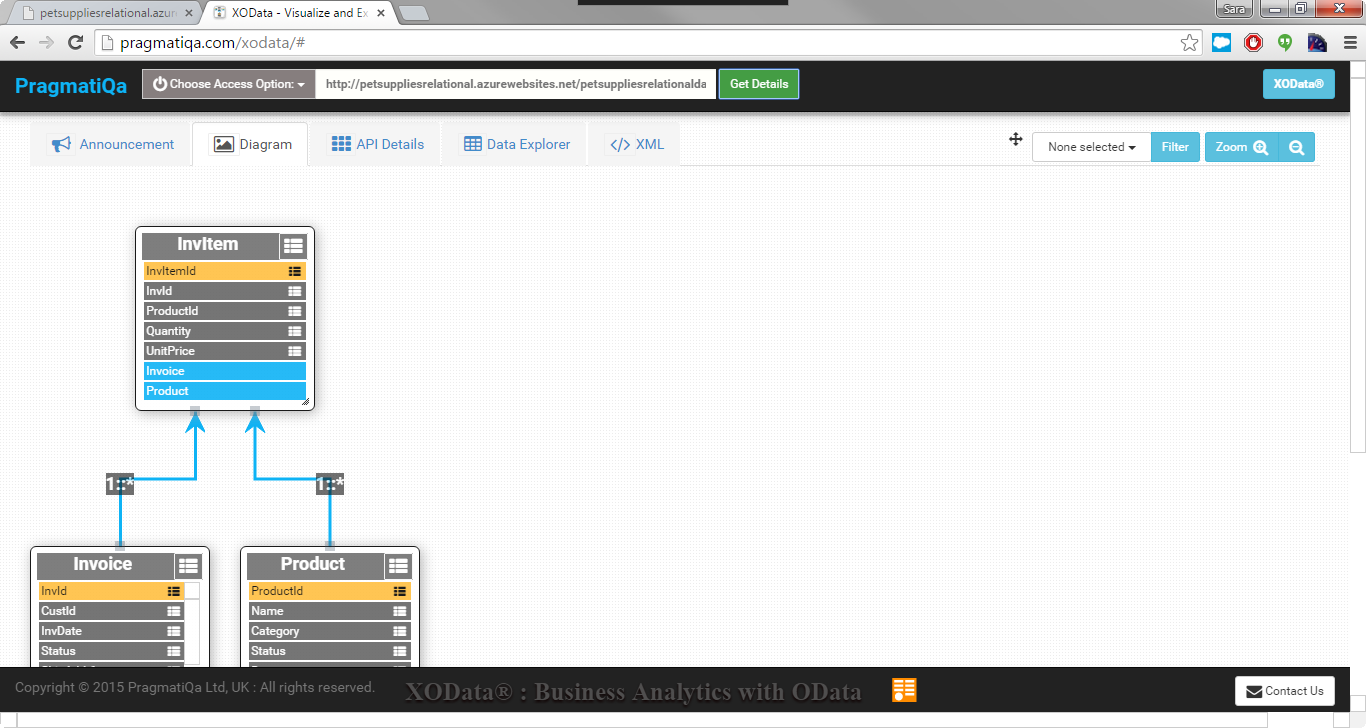
From there, click Choose Access Option and select Metadata URL. You can then enter the URL of your service, including the /$metadata at the end of the URL. So for the PetSupplies database, the URL would be:

http://petsuppliesrelational.azurewebsites.net/petsuppliesrelationaldata.svc/$metadata

Once entered, click Get Details and you should see results similar to the following:

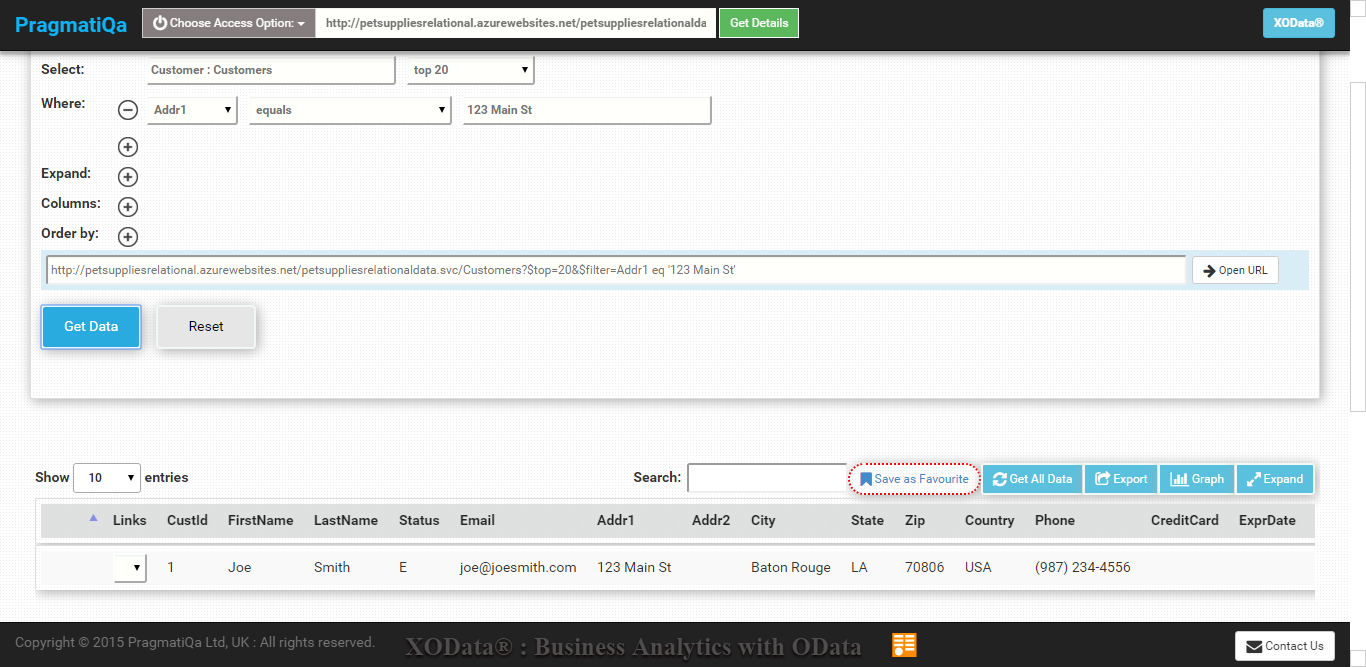
pragmatiquaYou can then select the Data Explorer tab and be able to easily select, filter and order data from any of the exposed entities. The results will be displayed in a nice table format that is much easier to read than the XML you saw earlier (see image below).

CustomerQueryInXOData

Isn’t that beautiful? I really think the guys at PragmatiQa did a GREAT job with that tool.

And finally, stay tuned for the final post (in about a week), where I will show you how to access the oData in Salesforce by creating an External Data Source.

Step Two: Create ASP.NET Application to Expose Data as oData (2 of 4)

This post will be part 2 of a 4 part series in which I will step you through what is necessary to expose and access a multi-table SQL Server Azure database with built-in relationships. These steps were covered at a high-level in my talk , but in this series, I will go through each step in greater detail. The steps will consist of the following:

1.) Create a SQL Server Azure Database

2.) Create ASP.NET application to expose data as OData (covered in this post)

3.) Publish Web Application to Windows Azure

4.) Create External Data Source and Define Relationships in Salesforce

TIP: Click here to access the code for this post, along with the Powerpoint slides from my talk at Dreamforce 2015 (which is what this post series is based on). But, if you follow along with tutorial in this post, you will not need it since you will be generating the code for yourself.

Step Two: Create ASP.NET application to expose data as OData

I will be walking you through creating an ASP.NET application that utilizes a WCF (Windows Communication Foundation) data service, along with the WCF Data Services Entity Framework Provider to render the data created in Step One as an OData endpoint.

You will need a copy of Visual Studio to complete this next step. In this tutorial, I will be using Visual Studio 2015 Community version, which you can download for free by going to this link and clicking the Download button under Visual Studio Community.

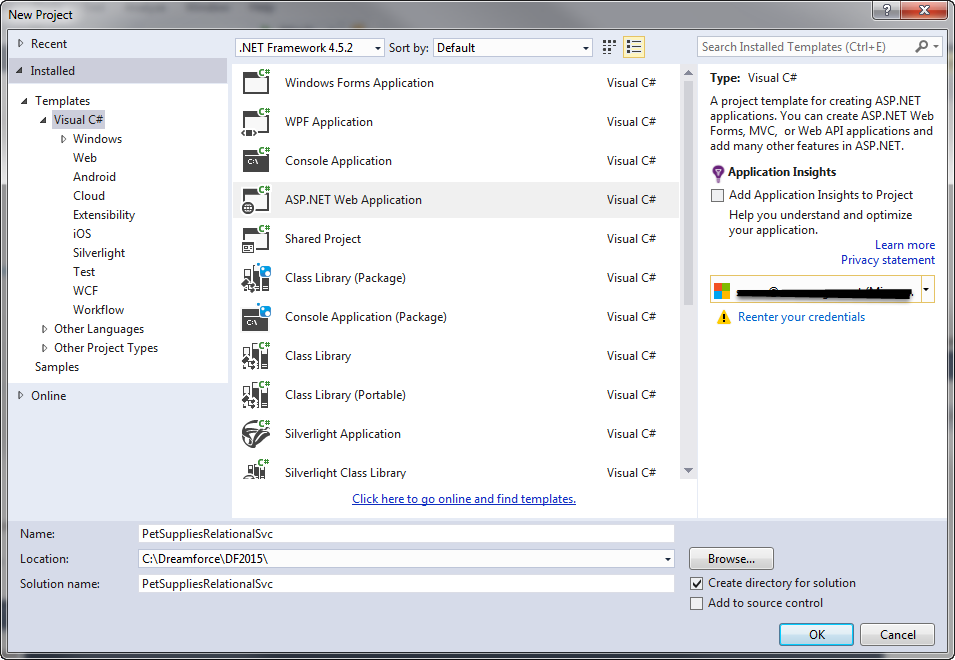
Once you have, open it up and create an ASP.NET Web Application using the Visual C# empty template. Name the project PetSuppliesRelationalSvc and save it somewhere on your local drive (see image below).
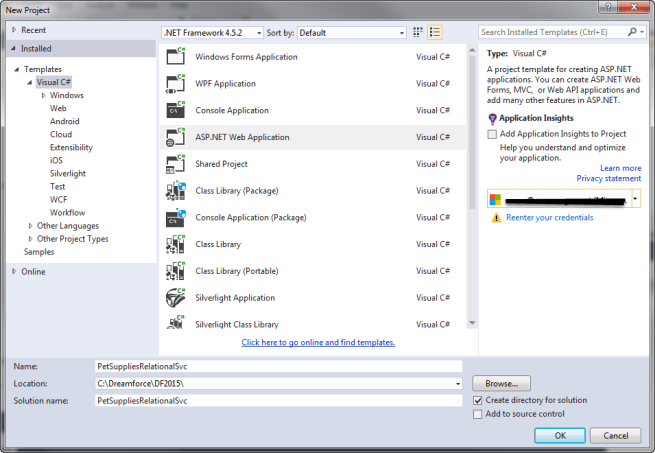
VSCreateProject

Add the Entity Data Model

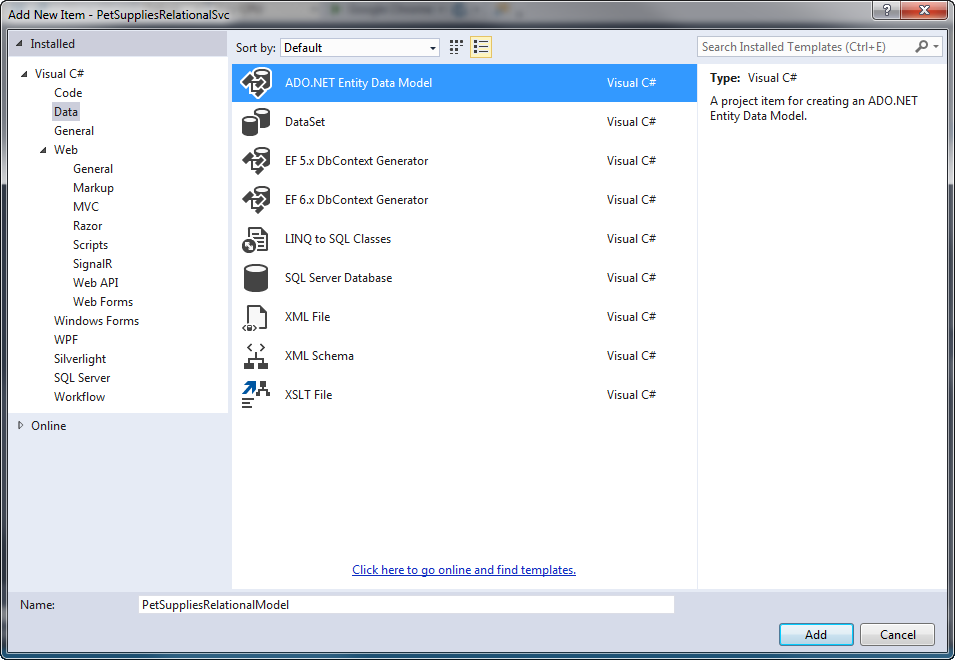
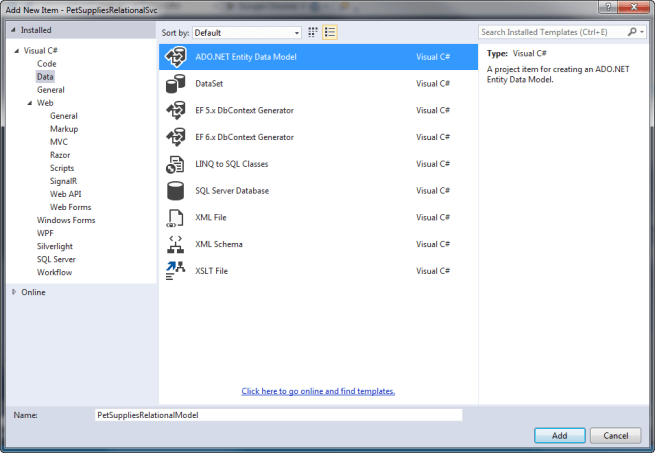
The first thing you will need to do is to add the Entity Data Model to your project by right-clicking the project in Solution Explorer and selecting Add | New Item. Select the Data Node in the left pane and from there select ADO.NET Entity Data Model. You can name the model PetSuppliesRelationalModel and click Add to continue (see image below).
VSAddADONET

A wizard will start and first ask you to choose the model contents. Since we are working with an existing database, you will want to select the default option of EF Designer from Database and click Next to continue. On the Choose Your Data Connection page, click New Connection. This is where you will enter the server name for your SQL Server Azure Database server, which should have been assigned when you created the database back in Step One.

If you do not know the name of the server, you will need to log back in to your Microsoft Azure account and go to the Databases quick start page. It should be listed at the bottom of this page and will look something like the following:

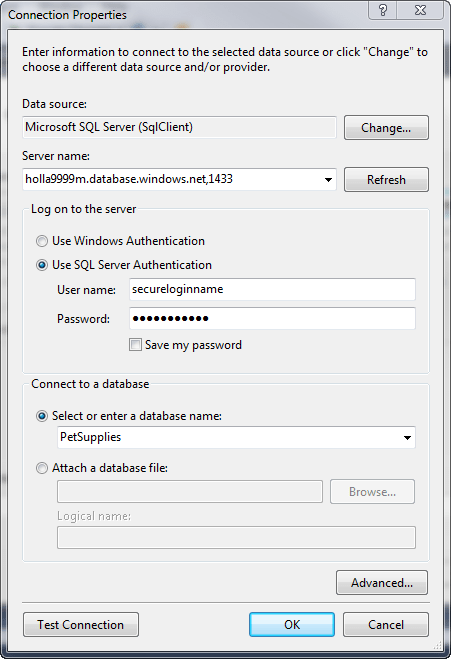
holla9999m.database.windows.net,1433

This entire string (including the comma and 1433 port assignment) should be copied into the server name textbox. You should also select the Use SQL Server Authentication radio button and enter the credentials you used to create the SQL Server Azure database. If the credentials are correct and your local IP Address has been configured to have access to the Azure firewall, you should be able to select PetSupplies as the Database (see image below) and when you click Test Connection, you should be get back a Connection successful message.
VSNewConnection

Once the credentials are entered, click OK to return back to the Choose Your Data Connection Wizard page. Since this is just a tutorial, you can go ahead and click “Yes, include the sensitive data in the connection string“, but if this was a real-world application, you may want to consider something more secure.

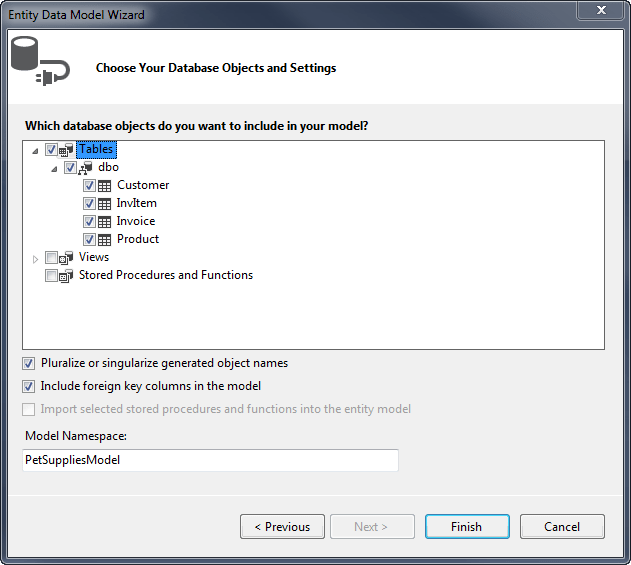
Click Next to continue and on the page where you choose your version of Entity Framework, leave the default selection as Entity Framework 6.x and click Next. On the Choose Your Database Objects and Settings page, select the checkbox next to Tables and enter PetSuppliesModel as the Model Namespace. Click Finish to complete the wizard.
VSChooseDatabaseObjects

You might see a Security Warning, but you can go ahead and click OK to run the template. It may take a few seconds for the wizard to build out all your code, but when it is done, you should see a schema diagram of the PetSupplies database. All the code that is needed to access the database has been generated for you. Wasn’t that easy?

Add the WCF Data Services Entity Framework Provider

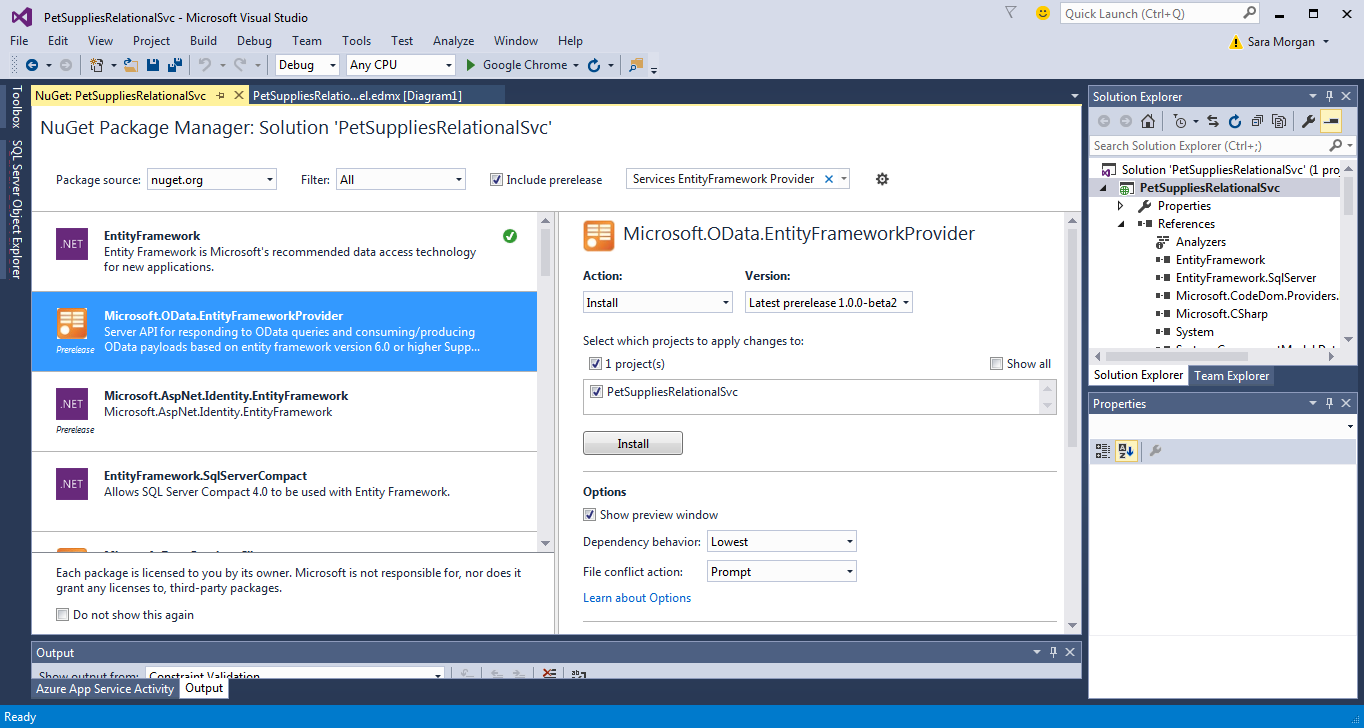
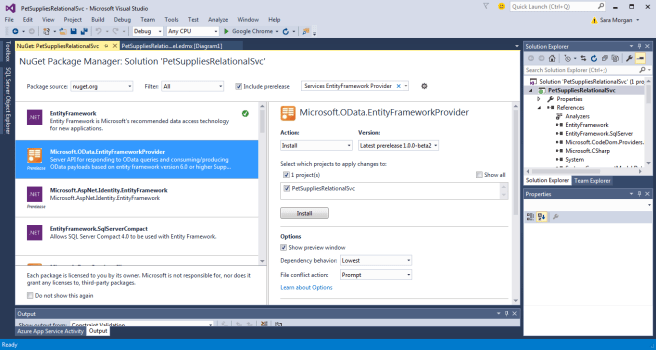
To get your SQL Server data into the OData format, you will need to install the WCF Data Services Entity Framework Provider (which as of this posting is still in beta). This is done by going to Tools | NuGet Package Manager | Manage NuGet Packages for Solution and clicking the Include Prerelease dropdownbox. You can then search for “WCF Data Services EntityFramework Provider” and once you find an entry for Microsoft.OData.EntityFrameworkProvider, click the Install button next to it (see image below).
VSInstallWCFEntityFramework

You should get a preview box that lists all the changes that will be made to your project. Click OK and also click I Accept to accept the license agreement.

Add the WCF Data Service

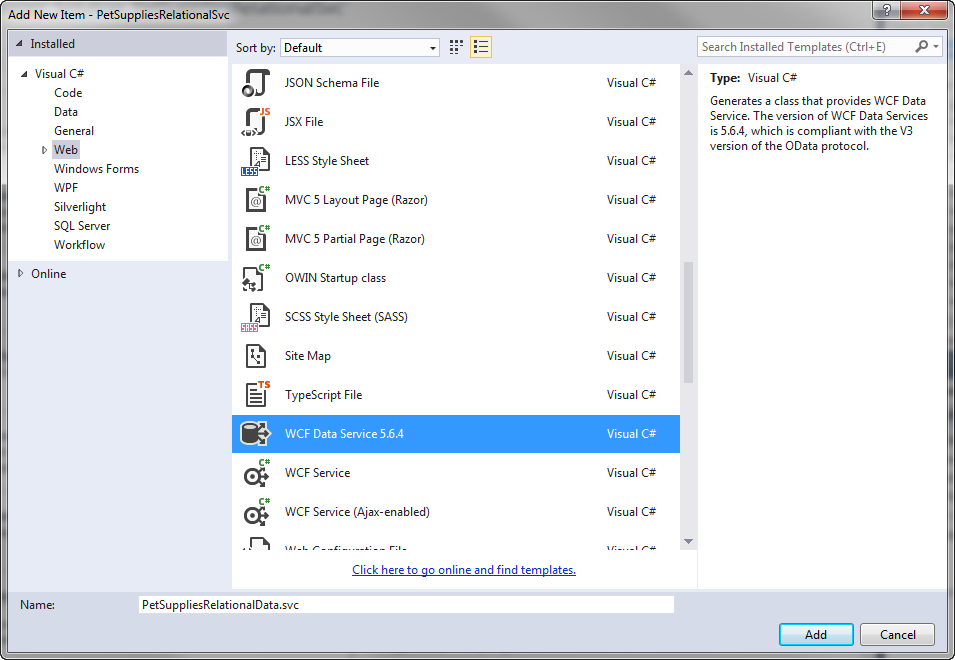
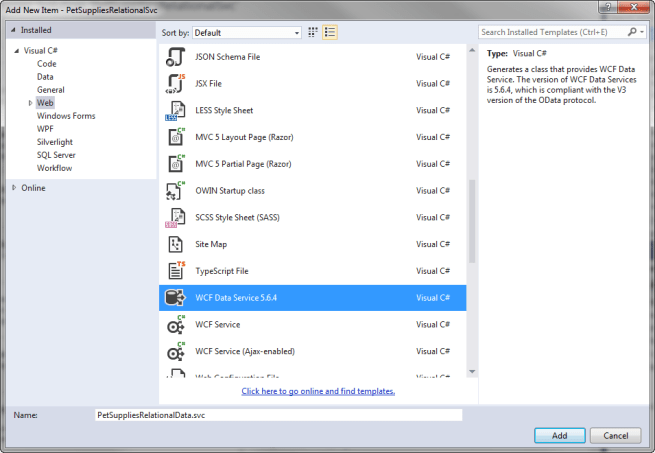
You are now ready to add the WCF Data Service that will be used to expose your OData. To do this, right-click the project and click Add | New Item. This time, select the Web node in the left pane and select WCF Data Service 5.6.4 as the Item template. Name the service PetSuppliesRelationalData.svc and click Add (see image below).
VSAddDataService

The code that is added to your project should contain TODO comments. The first change you will need to make is to add the data source class name where indicated in the class declaration. If you followed the naming I suggested in the tutorial, this should be PetSuppliesEntities.

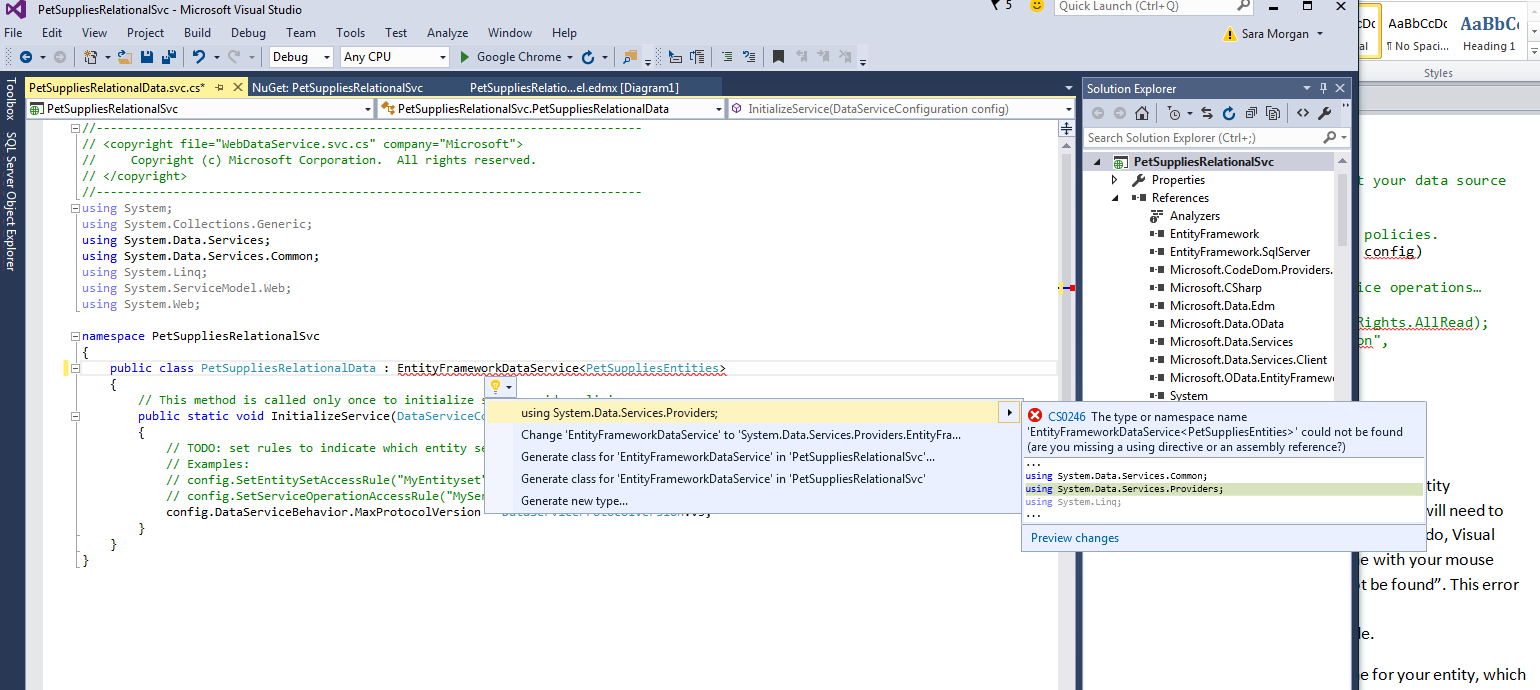
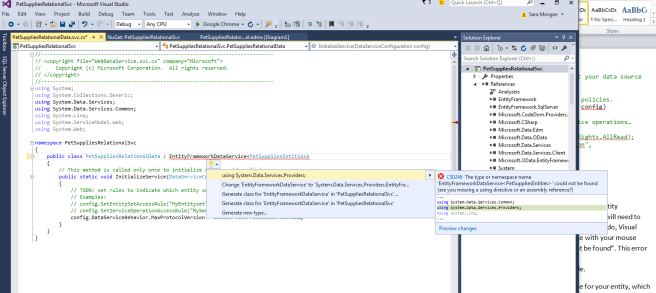
You will also need to change the type declaration from DataService to EntityFrameworkDataService. When you do this, you should get a red squiggly line under the code, indicating that the type could not be found. To correct this error, you will need to hover over the line of code (see image below) and click Show Potential Fixes. You can then select the line that says, “Using System.Data.Service.Providers” to add the reference and correct the problem.
VSCorrectError

I suggest that you add a line of code above the public class declaration that will apply the ServiceBehaviorAttribute and set the IncludeExceptionDetailInFaults property to a Boolean value of true. This will instruct the service to return unhandled exceptions as SOAP faults and will be helpful for debugging purposes. When you are done, the code should look like the following:

[System.ServiceModel.ServiceBehavior(IncludeExceptionDetailInFaults = true)]
public class PetSuppliesRelationalData : EntityFrameworkDataService

TIP: Make sure to set the value of the IncludeExceptionDetailInFaults property back to the default of false before deploying your solution to production.

The next TODO involves setting the rules to indicate which entity sets and service operations are visible or updatable. Since Lightning Connect only allows for read-only connections at this time (although I will be covering writable connections in later posts so stay tuned for that) the changes we will make will only involve un-commenting the line of code that sets the entity set access rule. We will then replace the word “MyEntityset” with “*” and leave the rights as AllRead. This tells the service that we want to expose all the entities as read-only.

After all the code changes are made, the PetSuppliesRelationalData.svc.cs file should look like the following:

using System;
using System.Collections.Generic;
using System.Data.Services;
using System.Data.Services.Common;
using System.Data.Services.Providers;
using System.Linq;
using System.ServiceModel.Web;
using System.Web;namespace PetSuppliesRelationalSvc
{
    [System.ServiceModel.ServiceBehavior(IncludeExceptionDetailInFaults = true)]
    public class PetSuppliesRelationalData : EntityFrameworkDataService {
         // This method is called only once to initialize service-wide policies.
         public static void InitializeService(DataServiceConfiguration config)
         {
            // TODO: set rules to indicate which entity sets and service operations...
            // Examples:
            config.SetEntitySetAccessRule("*", EntitySetRights.AllRead);
            // config.SetServiceOperationAccessRule("MyServiceOperation",
                     ServiceOperationRights.All);
            config.DataServiceBehavior.MaxProtocolVersion = 
                     DataServiceProtocolVersion.V3;
          }
     }
}

And that is about it. The only thing left to do is to test that everything is working right. But before you do that, be sure and save all your changes.

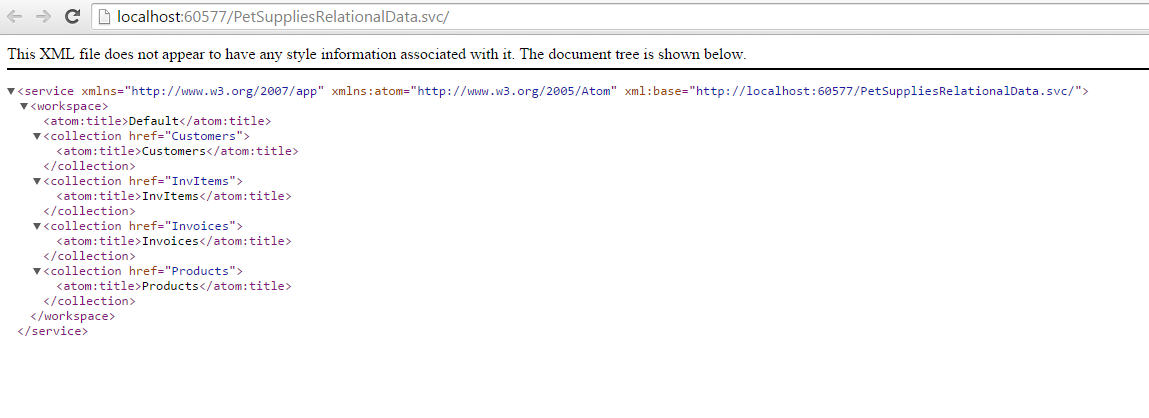
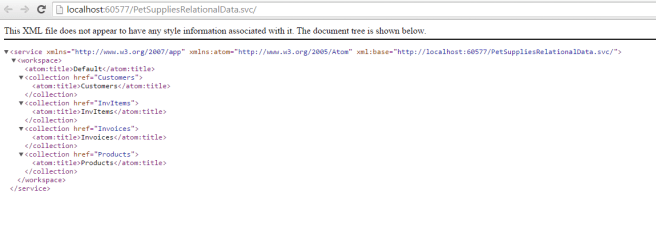
You can then right-click the PetSuppliesRelationalData.svc file in Solution Explorer and select View in Browser. When you do this, a browser window will open and load up your data service, listing all the entities exposed in XML format. The result should look similar to the image below. If you do not see this or see an error, then go back to see where you might have made a mistake and try again.
WebServiceLocalXML

Final Words

I know this post may seem long and the steps complicated, but it really is a pretty straightforward process with 99.9% of the code being built for you. The longest part of this should be downloading and installing the latest version of Visual Studio.

Click here to see the third post in this four part series.