Step One: Create a SQL Server Azure Database (Post 1 of a 4 part series)

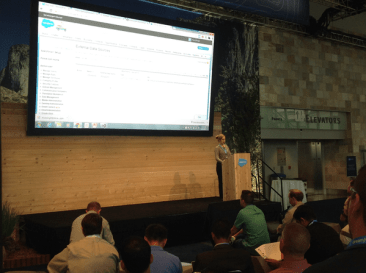
At this years annual Dreamforce conference, I had the honor of speaking about SQL Server Azure Database MeSpeaking2relationships using Lightning Connect. The talk was based on an article I wrote for DeveloperForce earlier this year titled, “Accessing a SQL Server Azure Database using Lightning Connect“. The original DeveloperForce article detailed the steps for creating a WCF Data service that exposed a single table SQL Server Azure database as OData.
This post will be the beginning of a 4 part series in which I will step you through what is necessary to expose and access a multi-table SQL Server Azure database with built-in relationships. These steps were covered at a high-level in my talk , but in this series, I will go through each step in greater detail. The steps will consist of the following:

1.) Create a SQL Server Azure Database (covered in this post)

2.) Create ASP.NET application to expose data as OData

3.) Publish Web Application to Windows Azure

4.) Create External Data Source and Define Relationships in Salesforce

TIP: Click here to access the code from this post, along with the Powerpoint slides from my talk at Dreamforce.

Step One: Create a SQL Server Azure Database

You will need a Microsoft Azure account to create a SQL Server Azure database, but you can sign-up for a free one-month trial through the following link. You will also need a way to build the database. If you do not have access to Microsoft SQL Server Management Studio, then you can use the built-in SQL Server tools that come with the free Community version of Visual Studio.

But the first step is just to create the database and the simplest way to do that is to go to the SQL Databases tab in Windows Azure Portal and click the big plus sign next the word New in the bottom right-hand corner of the Portal. Click Custom Create and enter a Database name along with a secure login name and password.

After the database server has been allocated, you can click here to download the latest version of Visual Studio, 2015. Keep in mind that it will take quite a long time to download and install. If you don’t want to wait, you can use an earlier version of Visual Studio, such as Visual Studio 2012 or 2013 (with latest update), but just NOT Visual Studio 2010.

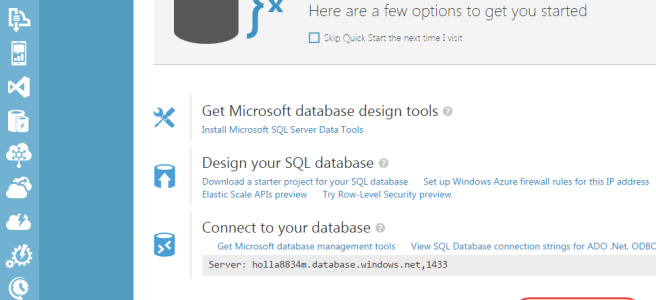
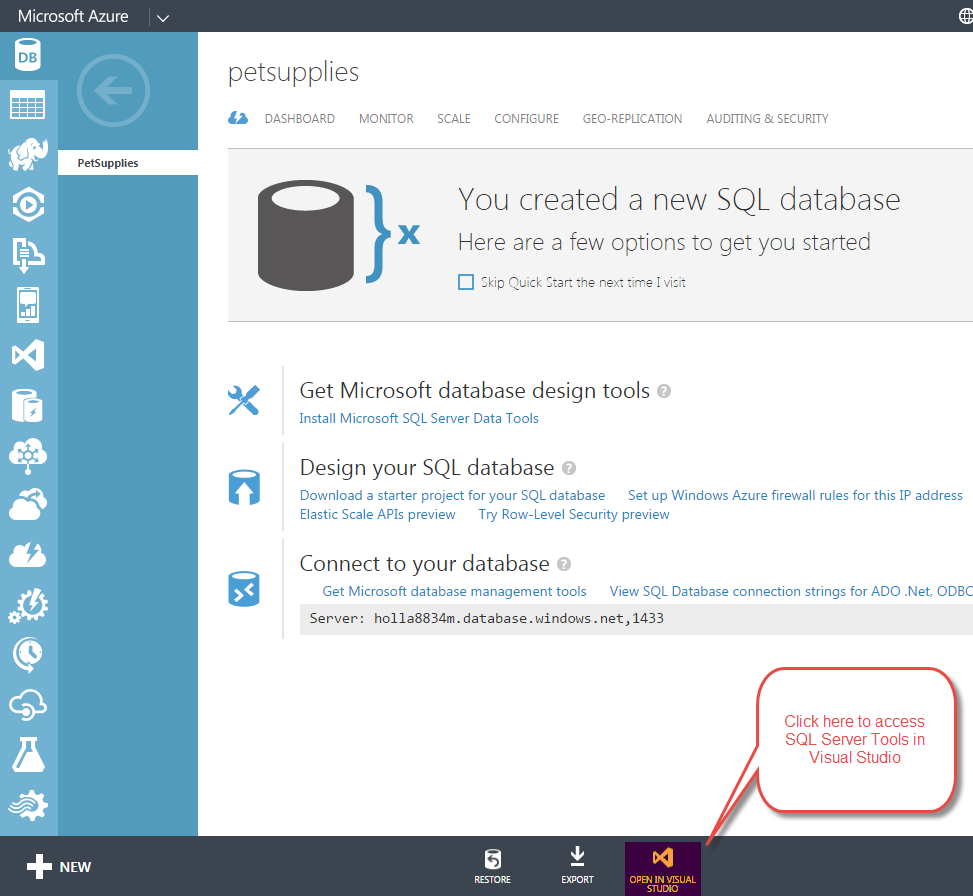
Once installed, you can access it from the Windows Azure Portal by clicking the Open in Visual Studio link at the bottom of the database quick start page (see image below).
PetSuppliesPortal

When you click this link, you should be prompted to add your local IP address to the Windows Azure firewall rules. Go ahead and click “Yes”.

One thing to be aware of here is that unless you have a static IP address, you will need to do this every time the address changes (which for some DHCP environments could be daily). This is done by returning to the quick start page and clicking the Set up Windows Azure firewall rules for this IP address link under Design your SQL Database.

TIP: If you know the allowable range of IP addresses you might be assigned, you can configure a range of IP addresses in the Azure Management Portal by going to SQL Databases and selecting the link for the server that your database resides on. From there, select the Configure tab to enter a new rule with starting and ending IP address.

If you are using a browser such as Chrome, you may also be prompted with an external protocol request asking whether you want to launch the application. Go ahead and click Launch Application. Doing so will launch the Visual Studio application and open up SQL Server Object Explorer. The first time you connect, you should be prompted to enter the login name and password you specified when creating the database in Windows Azure Portal.

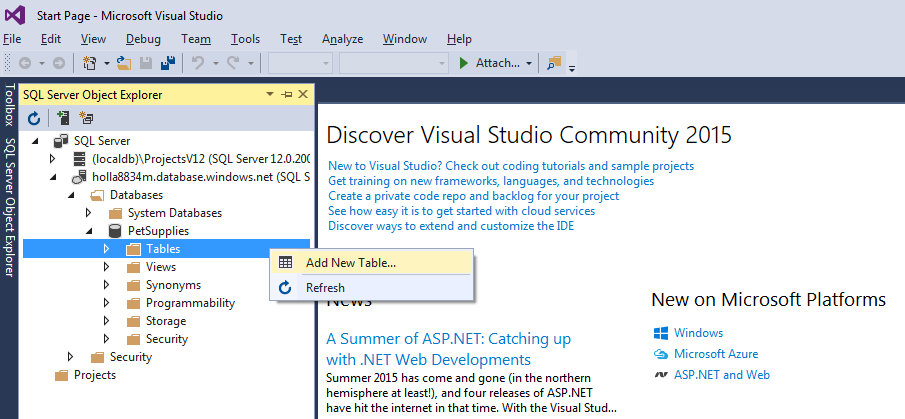
Once connected, you can use the SQL Server Object Explorer to add tables and data to your new SQL Azure database. If you prefer the point and click approach, you could create a new table for your database by expanding the Databases node, followed by your specific database and then right-clicking Tables and clicking Add New Table (see image below).
SQLObjectExplorerNewTable

If you are more comfortable working with SQL script, you could right-click on your database node and select New Query to bring up a window where you can type or paste in SQL script directly. Once entered, the script can be executed against your SQL Server Azure instance by clicking SQL | Execute.

Click here to see the second post in this four part series.

Understanding and Monitoring Visualforce View State

What is View State?

Since HTTP is a stateless protocol, any web application that needs to maintain state between page requests has to deal with how to handle View State. Visualforce handles it by using a hidden form element. Data in components and controllers are stored in an encrypted and hidden field on your page (see image below) that must be serialized and deserialized every time the Visualforce page is requested. Large view state sizes can quickly cause pages to suffer performance problems. Additionally, the Force.com platform limits your pages to a maximum view state size of 135Kb.

Like this Post? Then you will really like the “Improving Visualforce Performance” course that I designed for lynda.com. It was based on this post specifically and goes into great detail about each one of the tips in this post. Check it out!

ViewStatePNG

When is View State needed?

I have seen many examples of code on the forums and in blog posts that use the form tag, even though it is really not needed. I imagine this can happen when people copy code snippets and then change them to fit their needs. Beginning developers will likely not realize the potential negative impact that can occur by leaving in a form tag that is not necessary.

If your Visualforce page includes an <apex:form> component, then it is using View State and could suffer performance problems.

Form tags are only needed when the Visualforce page collects input from the user and is required when using certain apex components such as inputField, commandButton, and any of the action tags. However, it is not needed when just displaying output to users, which many Visualforce pages do. So, the first thing you should always ask is, “Is the form tag in my Visualforce page really needed?” If you are not sure, remove it and try saving the page. If another component requires the form tag, then you will get a compile error telling you this.

How to monitor View State

If your page does require a form tag, then you should be aware of how much view state your page is consuming. To monitor view state, you must first enable this by going to My Settings | Personal | Advanced User Details and clicking Edit. Select the Development Mode AND Show View State in Development Mode checkboxes and click Save.

To access the Development mode footer, navigate to a Visualforce page in your browser by replacing the last characters of the url with /apex/PageName. For example, if you have created a page named AccountSearch and your Salesforce Instance is na3.salesforce.com, then the URL should look like this:

https://na3.salesforce.com/apex/AccountSearch

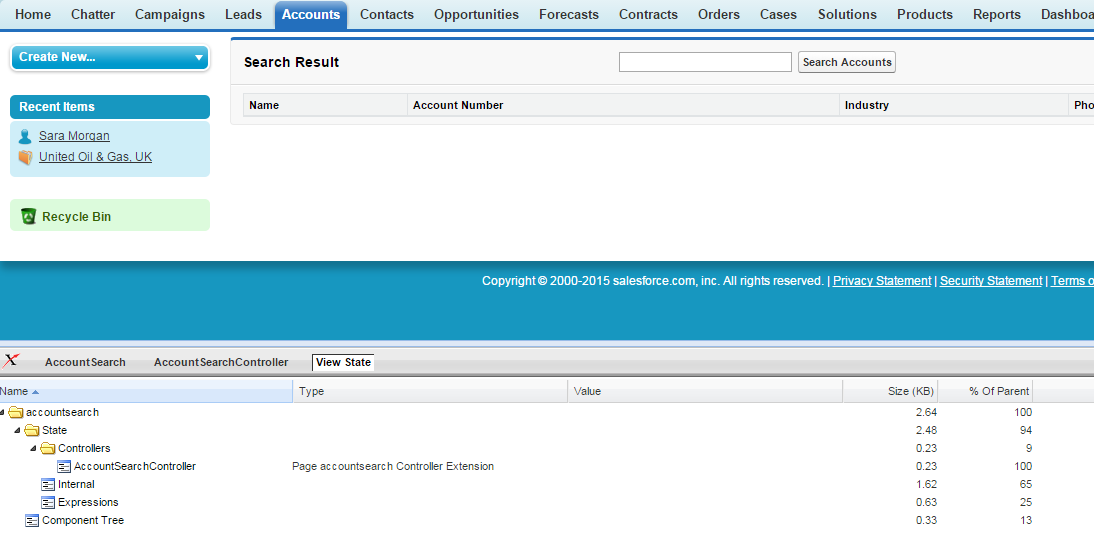
When you do this, a Development mode footer will appear at the bottom of the page and if your page has a form tag, then a View State tab will appear (such as in the image below).

Transient1

The initial view state (which means that no search has been executed yet) for this particular page is very low – only 2.64KB, which is far below the 135KB threshold allowed. But, what if this page had several more apex components, or what if I executed a search returned hundreds or thousands of records? Well, that number could go up rather quickly and this is why you need to be aware of what your pages view state is and to test it against large quantities of data.

How can I lower View State?

If you do find yourself in the position where your page is performing poorly due to view state (or even encountering limit errors), then there are a few things you can do to fix this. If you have to use a form tag, then the first thing you can do is examine your View State using the Development mode footer and determine whether any of your variables can be marked as transient.

The Transient keyword can be used to flag a variable so that it does not get saved to view state. Chances are, all the variables in your page do not need to be saved between page requests and so this is the easiest and fastest way to lower your view state.

For example, take a look at the markup code below which is used to render a simple Account Search form:

<apex:page standardController="Account" extensions="AccountSearchController">  
  <apex:form >  
      <apex:pageBlock title="Search Result">  
          <apex:pageBlockButtons location="top">
              <apex:inputText value="{!searchstring}" label="Input"/>    
              <apex:commandButton value="Search Accounts" action="{!search}"/>  
          </apex:pageBlockButtons>   
          <apex:pageblockTable value="{!acc}" var="a">  
              <apex:column headerValue="Name">  
                  <apex:outputlink value="/{!a.id}">{!a.Name}</apex:outputlink>  
              </apex:column>  
              <apex:column headerValue="Account Number" value="{!a.AccountNumber}"/>  
              <apex:column headerValue="Industry" value="{!a.Industry}"/>  
              <apex:column headerValue="Phone" value="{!a.Phone}"/>  
              <apex:column headerValue="Website" value="{!a.Website}"/>  
          </apex:pageBlockTable>     
      </apex:pageBlock>    
  </apex:form>  
</apex:page>

and the controller look like this:

public with sharing class AccountSearchController { 
    // Matching Accounts
    public List<Account> acc {get;set;}  
    
    // Search Text entered by user
    public String searchString {get;set;}  
       
    //Constructor
    public AccountSearchController(ApexPages.StandardController controller) {  
    } 
    
    // Action method to search for Accounts  
    public void search() {  
        String searchWord = searchString + '%';  
        acc= [SELECT AccountNumber,Name,Phone,Industry,Website 
              FROM Account 
              WHERE Name like : searchWord];  
    }  
 }

The AccountSearch form is a simple search page that will accept a search string from the user and look for all accounts where the name matches. The results are returned in a variable named acc and the code, as it is now, will store all the records returned in view state. Since this search involves a wild card at the end, if the user looks for all accounts that start with the letter ‘a’ and the org has a lot of accounts, the results could be huge and the view state could easily become too large.

In this example, there are two variables (or properties) that could potentially be marked as Transient: acc and searchString. You can see then both displayed on the View State tab of the Development mode footer (see image below).

Transient

The searchString property is assigned a value when the user enters a word or phrase and clicks Search Accounts. This value is dynamically bound to a SOQL statement and the results are returned to the acc property. Since the searchString value needs to persist between the Get and Post request, it cannot be marked as Transient. But the acc property, which happens to take up the most amount of view state size in KB, contains data results that are just displayed on the page.

Once the results are returned, there is no need to store all the data in view state. The easiest way to reduce view state is to simply add the keyword Transient, so the code for the property declaration now looks like this:

// Matching Accounts
public Transient List acc {get;set;}  

Once the Transient keyword is added, you can save the page and look again at the View State tab. You should see that the acc variable has disappeared entirely and the overall view state size has decreased.

Interested in Learning More?

If you liked this post, then you might be interested in learning more about how you can improve Visualforce Performance by checking out my online course for lynda.com, “Improving Visualforce Performance“. I have an entire chapter dedicated to View State and other chapters involving the following:

  • Evaluating SOQL for efficiency
  • Using Workbench and the Query Plan tool to evaluate queries
  • Reducing use of action tags through Visualforce remoting
  • Working with the StandardSetController class
  • Using static resources

Improving Visualforce Performance – New Online Course Released

Improving Visualforce Perfomance

I am proud to announce that yesterday my online course for lynda.com, “Improving Visualforce Performance” was released. The course is a little over 2 hours long and it focuses on what you need to know to get the most out of your Visualforce performance. It is not a beginning level course (like the first one I did about Developing for Visualforce).

I based the course on a post I did over a year ago called, the “Top 5 Tips for Improving Visualforce Pages“. That post has been the most popular post on this blog for sometime, so I knew this was a good topic.

The course goes into great detail (with examples) of all the tips I covered in that original post. I spent a lot of time developing the examples and scripts for this course and I have to admit I am pretty proud of it. The 5 tips it covers include:

  1. Reducing or Eliminating View State
  2. Evaluating SOQL for Efficiency
  3. Reducing use of Action Tags
  4. Taking Advantage of the StandardSetController
  5. Incorporating Best Practices with JavaScript, HTML, CSS and Images

If you are interested, lynda.com offers a free 10 day trial that you can access here. And until Monday, August 24th, they are offering 30% off the first billing for monthly and annual subscription plans.

I would love to know what you think of the course and what recommendations you have for future course as I plan to be doing more of them.

Come see me talk about SQL Server and Lightning Connect at Dreamforce 2015

LightningI am happy to say that I will be presenting again at this years annual Dreamforce, Wednesday September 16, 2015 at 9:15am. The session is titled, “Exploring SQL Server Azure Database Relationships Using Lightning Connect, and I should be in the Mobile Theatre in Moscone West.

Lightning Connect is what I consider to be a game changer in the world of Integration. It allows you to easily (and the key word here is easily) setup a real-time connection between your external data and Salesforce.

After setting it up, you can query external data from within Salesforce just like you would any other sObject. No exhausting setup of some overly complicated publishing/subscriber model (which is something I myself have unfortunately been involved with). No, you just publish your data as oData, setup an external data source in Salesforce, define some external relationships, and off you go.

Now, as with any new technology like this, there are a few gotchas to be considered. I will be covering some of these, as they pertain to setting up a connection to communicate with a SQL Server Relational database hosted on Windows Azure. The key takeaways I hope to communicate during this session will be:

  • What you need to know to work with Visual Studio and SQL Server Azure
  • How quick and easy it is to setup a connection and query data one-way in real time
  • What you need to know to define relationships in Salesforce

Hope to see you there!

Why Every Salesforce Developer should be using Trailhead

I have recently been using Trailhead to help me study for an upcoming exam and I have been incredibly impressed with how good it is. I have already posted about the Trailhead modules that cover new material, such as Lightning, but what I was surprised about was how useful it was for reviewing material that I thought I already knew pretty well.

Trailhead is definitely not exhaustive in it’s coverage, but what I like most about the modules is that they go over just the stuff you really need to know. And most importantly, they go over best practices. There are so many examples of inefficient and just plain bad code out there (even on some of the Salesforce sites I hate to say). The text and challenges in the Trailhead modules were well thought out and it is obvious they put a lot of time into developing them. It still Trailheadsurprises me that something this good is free, but fortunately for us, it is.

If you are preparing for one of the Certified Developer tracks, you really need to check out the Developer Trail. It covers a lot of what goes into the exams and the progressively harder challenges really solidify what you just learned. Unlike tutorials that you can just follow in your sleep, the challenges tell you to do something, but not how to do it. And, if you do not do it exactly right, you do not get the points. You actually have to THINK about what you are doing and this is absolutely the best way to learn.

And if you are a certified developer who has been doing this for several years, there is still stuff for you to learn, even when it comes to best practices. As we all know, this platform is changing constantly and that means that so are best practices.

And honestly, it is just fun seeing yourself rack up the points. I really like the WooHoo I get at the end of the challenge. I am proud to say I have 5 badges and over 12,000 points so far (with more to come). How many will you get?

Check out Node.js Tools For Visual Studio

There is no question that Node.js is here to stay and thankfully, Microsoft recognizes this too. They recently released Node.js Tools for Visual Studio which addresses many of the pain points that exist with working with Node.js. The tools are entirely open source and available here on GitHubnodejs

Since Microsoft graciously released Visual Studio Community Version last year as a FREE and fully versioned copy of Visual Studio, you can install the Node.js tools for FREE and get started building cool Node.js solutions right away. If you are already doing Node.js development or even thinking about getting started, you really need to check out these tools.

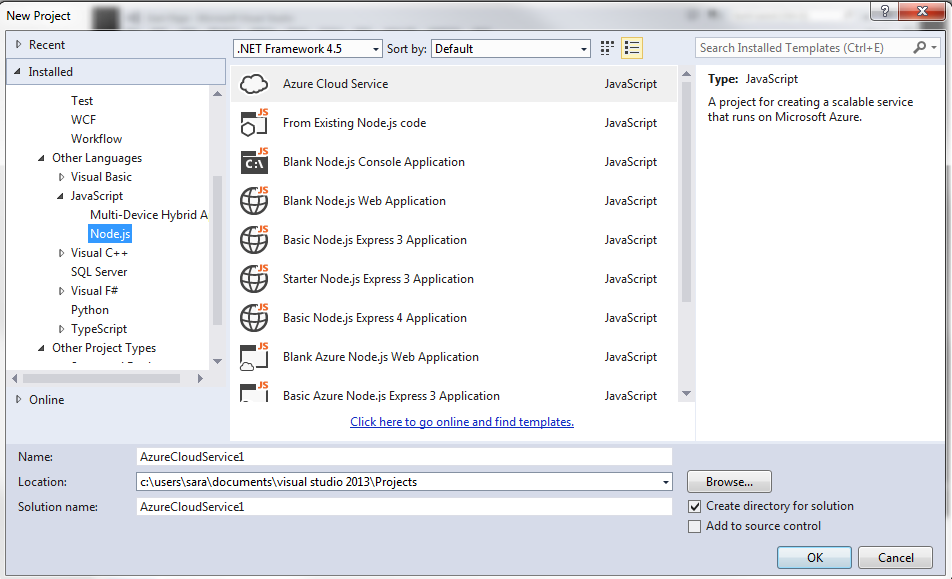
The Tools offer templates to get you started (see Image below), but the really cool thing about the new tools is the fact that you can do debugging by setting breakpoints in your code and stop execution on the fly. Anyone that has struggled with trying to debug a Node.js application will immediately see how valuable this can be. They also have a neat profiling tool and remarkably intellisense for code completion. Basically all the nice features that have spoiled Visual Studio developers for years.

NodejsToolsForVS

There is a GREAT video on Channel 9, in which one of the Node.js tools programmers was interviewed and did a walk through of all the cool new features of the Node.js Tools. I strongly suggest that you check it out before diving in.

Have fun and let me know what you think about it.

Book Review of “The Silent Intelligence: The Internet of Things”

SilentIntelligenceI recently had the pleasure of reading, “The Silent Intelligence: The Internet of Things”. This book was written by two machine to machine (M2M) experts who incorporated their own hard earned experiences along with the opinions of over thirty industry experts.

If you are on the fence about the Internet of Things (IOT) and not sure if this is just some trendy fad, then this is the book for you. It will definitely make you a believer and get you excited and slightly prepared for all the good stuff to come.

And if you are a Salesforce developer, have no fear, you have the right skills to capitalize on this soon to explode market. The cloud, and in particular the Force.com platform is in the perfect position to handle and benefit from all the data that will be streaming in from these devices. As Steve Pazol, of nPhase and Qualcomm says:

“At the end of the day, M2M is really about data. You’re getting data off devices or sensors that have been hard to get, but once it’s in the cloud, it’d data. So all the data tools, if it’s big data or any kind of business intelligence software, all that stuff is applicable”.

After reading that you should definitely be thinking about Wave and all that will be possible once all that IOT data makes it to the Force.com platform.

Ok, so once you read this and decide that you undoubtedly want to learn more, check out Pat Patterson and Reid Carlberg’s excellent posts on DeveloperForce about IOT and the Force.com platform specifically. Have fun!!!

How to Set the API Version using the Force.com Toolkit for .NET

toolkitIf you are doing Salesforce Integration work and working with the REST API, then you have probably already heard about the Force.com Toolkit for .NET. But, because the toolkit is unfortunately not very well documented, you probably had no idea that it defaults to using version 32 of the REST API. You also probably had no idea that you can change the api version (like to the latest version, which is currently 34) using the Toolkit.

Don’t worry, I had no idea either and I have worked with the Toolkit quite extensively. In fact, when I discovered that it was using version 32, I actually reported it as an issue (since the Toolkit is Open Source). However, as the projects owner (Wade Wegner) graciously pointed out to me, this is a purposeful feature of the Toolkit. As he states, “The SDK is designed to make it easy for you to change the API version yourself programmatically but defaults to the last known working API version. That’s not to say it won’t work with v34, only we haven’t tested it.”

So, now you may be asking, “Ok, so how do I change it?”

Glad you asked, since that is what this post is about. Turns out to be pretty easy (since the Toolkit is pretty slick like that).

The ApiVersion property can be set or retrieved after authenticating using either the UsernamePasswordAsync or WebServerAsync methods. For example, if I were to place a line of code like this in a console application after authentication, I would expect to get “v32.0” printed out to the console:

await auth.UsernamePasswordAsync(consumerKey, consumerSecret,
        username, password + token, url);
Console.WriteLine("Sucessfully Logged in. You're default API Version is: " 
        + auth.ApiVersion);

Now if I want to set it to the latest version (which is 34), I can pass that in when I get an instance of the ForceClient, which is needed to perform any operation using the Toolkit. The code to set the ApiVersion to 34 would simply look like this:

var client = new ForceClient(auth.InstanceUrl, auth.AccessToken, "v34.0");

That’s it. Just remember that the ApiVersion is a string and that it must be formatted like this: “v34.0”. Passing in “34”  or 34 will not work and will get you errors, in fact. Not sure I like that part so much, but just glad I can set it to what I want.

BTW, I tested that this would work using the Sample Console app and setting the version to 34 and it worked splendidly.

Hope that helps someone out there.

Considerations when Sending Outbound Emails Through Apex

email-outbound-imageIn a recent post, I went over things to consider when receiving emails using Apex code. In this post, I will go over some tips and considerations you should make when working with outbound emails in the real-world.

  • First off, in order to work with outbound messaging in your Sandbox (note that I said Sandbox and NOT Developer edition), you will first need to enable it since it is disabled by default in Sandboxes. You can do this by going to Setup | Email Administration | Deliverability  and changing the Access Level to All Email.
  • Even though you can create email templates using text or HTML, as long as you are NOT sending mass emails, consider using Visualforce instead to design a more robust and dynamic email template. I said the part about mass emails because Visualforce cannot be used in these particular situations. But assuming you are just dealing with single emails, then Visualforce can be a great alternative. Refer to this doc for more info on how to use them.
  • If you are a Sys Admin or you have permission to “Manage Public Templates”, then you can access the email templates by going to Setup | Communication Templates | Email Templates. Otherwise you can access the ones you have access to by going to Setup |My Setttings | Email | Email Templates.
  • Outbound email message limits are based on Greenwich Mean time (GMT) and not necessarily your time zone (unless of course, you live in England). Also, the limits on mass emails vary by your Salesforce Edition. Checkout page 16 of this Limits Cheatsheet for more specific info.
  • Even though the limits clearly state that you can send up to 1000 emails per org per day, this only applies to non-Development or non-Trial orgs. Development and Trial orgs are restricted to a far lower number of 10-15 messages per day (depending on when your org was created).
  • Most code examples I have seen out there do not show how to use the reserveMassEmailCapacity and reserveSingleEmailCapacity methods from the Messaging class. They can be used to check whether you will exceed the org limit or if the org does not have the right permissions when trying to send either Mass or Single emails. Prior to Winter 14, these methods existed, but for some reason using them still resulted in an unhandled limit exception. Using them should result in a handled exception and this is a much better way of avoiding unexpected outcomes. For example, the following code should now work ok:
try {
    Messaging.reserveSingleEmailCapacity(numOfEmailsToSend);
} catch (Exception e) {
    //handle your exception gracefully
}

Gotchas encountered when working with Lightning Connect and SQL Server Azure Databases

ILightning recently published my first article for DeveloperForce about Accessing a SQL Server Azure Database with Lightning Connect. I had a lot of fun creating the database and application, but I did encounter several gotchas as I was working with this fairly new technology. This posting lists some of the issues I uncovered while working with SQL Server Azure and what you can do to avoid the problems I encountered.

  • Adding firewall rules
    • DSL will likely change your IP address, so you will have to set this everyday most likely (unless you are fortunate enough to have a static IP address). You do this through the Set up Windows Azure firewall rules for this IP address link on the Quick Start page.
    • Connection may get lost occasionally, even though your IP address has not changed. If you start getting weird problems trying to publish, you can go back to Azure portal and click the Setup Windows Azure Firewall link again. Even though it is already added, doing this somehow refreshes the connection and will resolve your problems.
  • Connection String user needs to use an unrestricted DB user that has access to the Master DB. Refer to this article for more information http://www.odata.org/blog/got-sql-azure-then-youve-got-odata/. Real-world applications exposing their sensitive data via oData will need to take this into consideration and try to use a more restricted user.
  • If you try to use the latest version of the Entity Framework with web services, you will have to install some additional NuGet packages as outlined in the article. See article for more about specifics on that.
  • Depending on your internet connection, the initial publish may take a long time to complete and if you try to access the hosted website before then, you will get errors (probably that the resource cannot be found). Make sure the output in Visual Studio shows that the publish was complete and with no errors (such as a timeout error, which happened to me several times) before attempting to see the results online. If successful, a browser window should be spawned and you will be directed to the home page of your new hosted website.
  • Unfortunatley, Lightning Connect does not yet (and notice the hopeful word yet) automatically create relationships when you create your external data source. You will have to manually create these yourselves. It gets even more complicated in that you MUST edit the existing synced fields to create these relationships and DO NOT create new fields instead. If you do create new fields then you will encounter errors such as the ones I got and reported about here.  The error had to do with how I defined the external lookup relationship. I went to the external object definition page and clicked New to create a new field and then define the relationship. In order to avoid the error, you will need to instead edit one of the existing SYNCED fields and specifically Change the Field Type so that it is of the External Lookup Relationship type and that it points to the correct external table object. Then, you can perform your SOQL query and get no errors.

Let me know about your experiences with Lightning Connect. Despite all the above issues, I think it is a FANTASTIC new development for integration and I am excited to see it develop even further.